
A Circadia flag is an early warning that a patient’s condition may be changing. Circadia’s AI looks at vitals and motion from the Circadia C200 alongside information from your EHR, and raises a flag when it sees a pattern that may need clinical attention, such as a sustained rise in respiratory rate.
Flags live in Predict. Open it from the left navigation in the Circadia Intelligence Platform (CIP).
The Predict screen
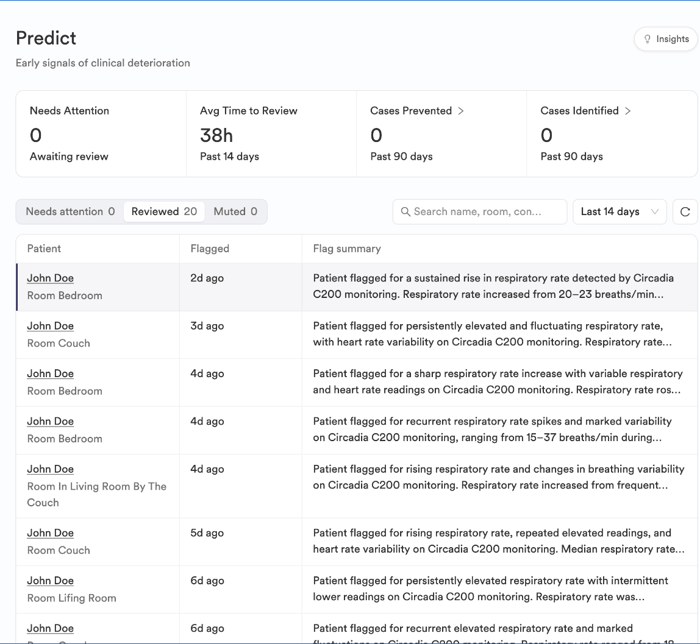
Summary cards
- Needs Attention: Flags waiting for review.
- Avg Time to Review: How long, on average, your team took to review flags over the past 14 days.
- Cases Prevented: Flagged patients who avoided a hospital transfer over the past 90 days. Select the card to see the cases.
- Cases Identified: Changes in condition that Circadia identified over the past 90 days. Select the card to see the cases.
Flag lists
- Needs attention: New flags that haven’t been reviewed yet. Start here.
- Reviewed: Flags your team has already reviewed, including who reviewed them.
- Muted: Flags that have been muted.
Each row shows the patient and room, when the flag was raised, a short flag summary, the latest vitals, and who reviewed it. Use the search bar to find a patient by name or room, the date filter to change the time range (the last 14 days by default), and the refresh icon to check for new flags.
Reviewing a flag
- Open Predict and select the Needs attention tab.
- Select a patient to open the flag details.
- Read Why this flag to see what Circadia detected, then check Latest vitals and the Vitals trend.
- Assess the patient and follow your facility’s protocols, escalating to the attending provider as needed.
- Mark the flag as reviewed. It moves to the Reviewed tab with your name and the time.
Use the arrows at the top of the panel to move between flags, or select Patient profile to open the patient’s full record.
What’s in a flag
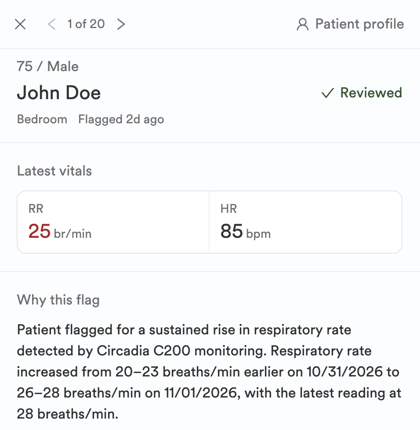
- Latest vitals: The most recent respiratory rate (RR) and heart rate (HR). Values that may need attention are shown in red.
- Why this flag: A plain-language summary of what changed and when.
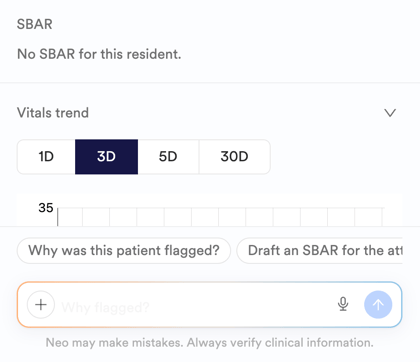
- SBAR: The SBAR report for the patient, if one has been created.
- Vitals trend: A chart of the patient’s vitals over the last 1, 3, 5, or 30 days.
Ask Circadia AI about a flag
At the bottom of the flag panel, you can ask Circadia AI about the patient. Choose a suggested prompt, such as Why was this patient flagged?, Draft an SBAR for the attending, Show vitals for the past week, or Has this happened before?, or type your own question. You can also add context or record a voice message.
📌 Circadia AI can make mistakes. Always verify clinical information before acting on it.
Get notified about new flags
Turn on text notifications so your team knows as soon as a new flag comes in. See Managing CIP SMS Notifications.
📌 Flags support, and do not replace, clinical judgment. Circadia is not intended for real-time monitoring of medical emergencies such as a heart attack or stroke. Always follow your facility’s protocols and call 911 for acute events.
Need help?
Our team is here to support you. Use the chat feature in the CIP app, or email support@circadia.health.