
This video walks you through what the notifications mean, why it matters, and the immediate steps to take for best practices.
Setup & management
How to set up Bed Exit notifications
Notifications are configured per resident and sent directly to the tablets.
-
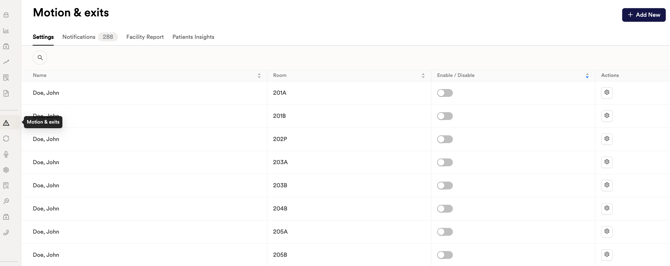
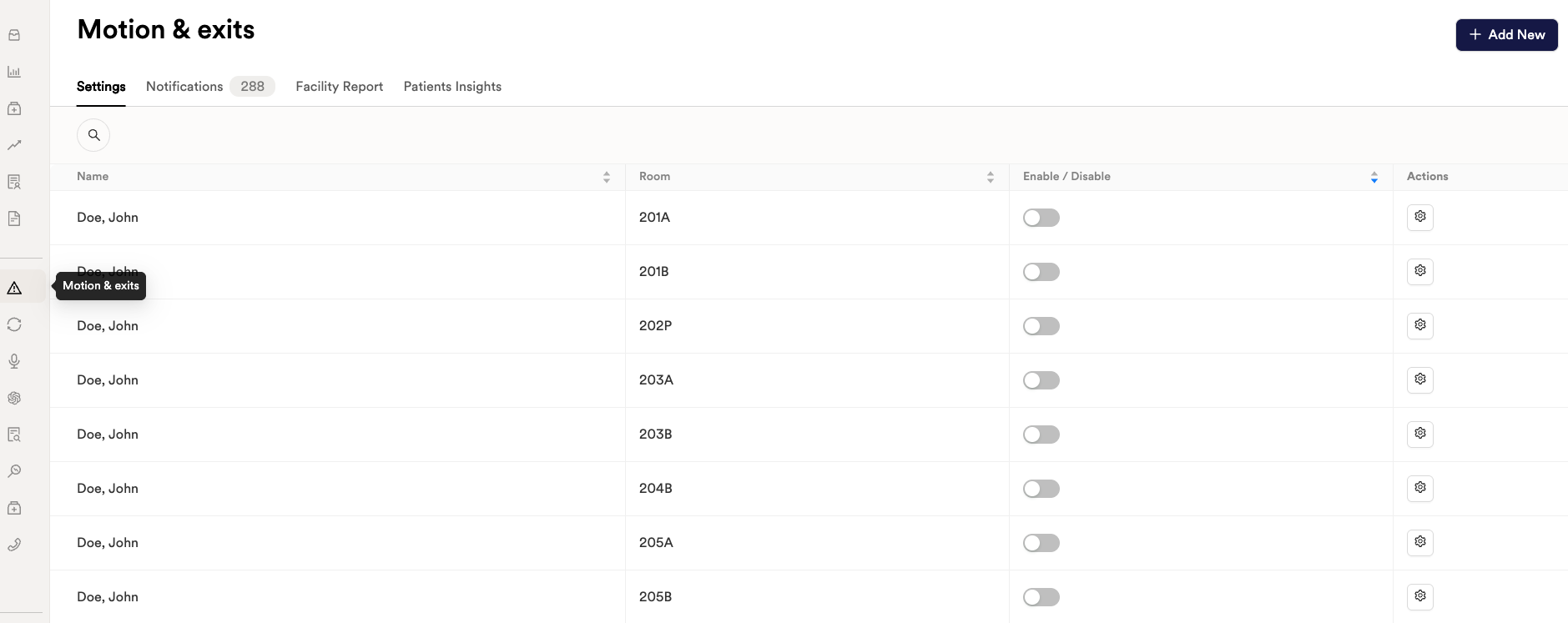
Navigate to the Motion & Exits tab
-
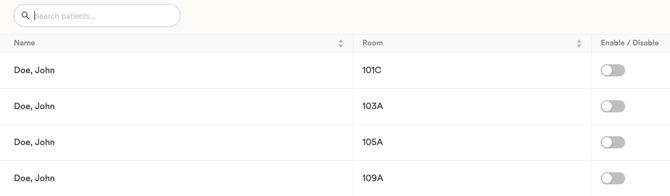
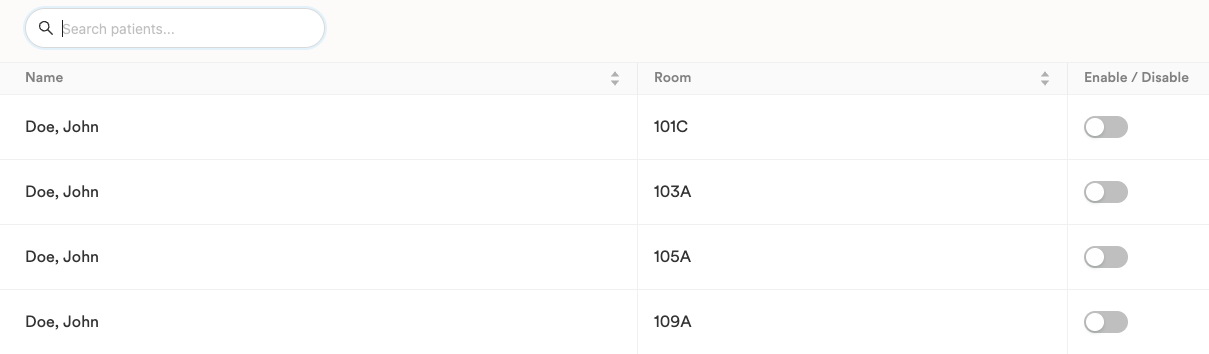
Use the search bar or scroll through the list to locate the resident.
-
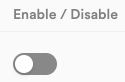
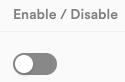
Toggle the Enable / Disable switch for the resident to activate Bed Exit notifications.
-
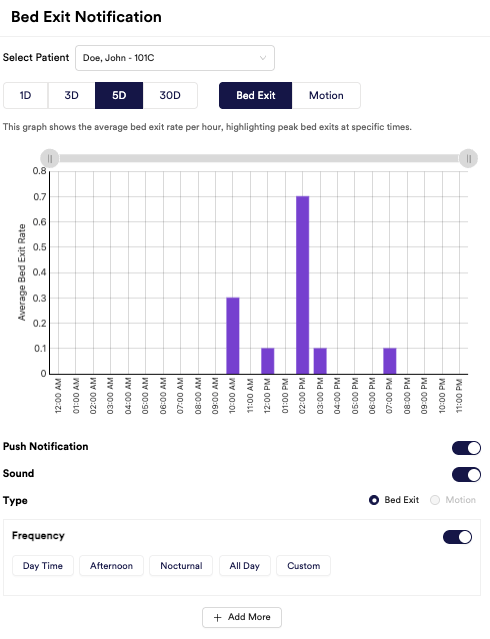
This will redirect you to the Bed Exit notification page to configure the time window desired for the selected resident.
-
Review the Average Bed Exit graph
-
The graph shows how often the resident exits the bed by hour. Use this to identify peak activity times and select appropriate notification timeframes.
-
-
Configure notification settings
-
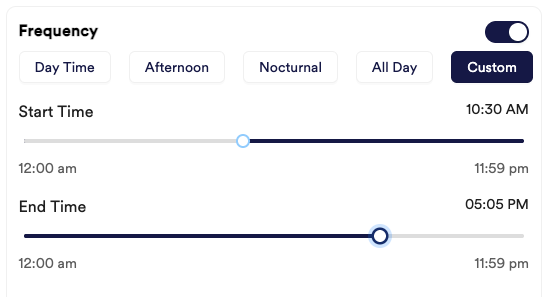
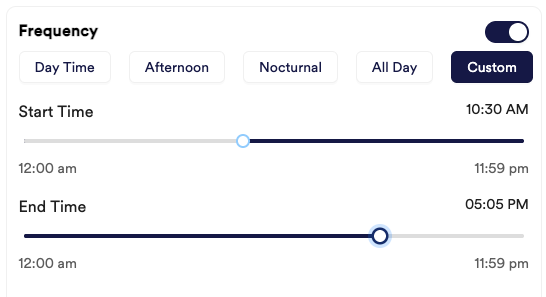
Select a predefined Frequency or choose Custom, then use the slider to set the notification timeframe.
-
-
Save your configuration
-
Save your settings to begin receiving bed exit notifications during the selected timeframe.
-
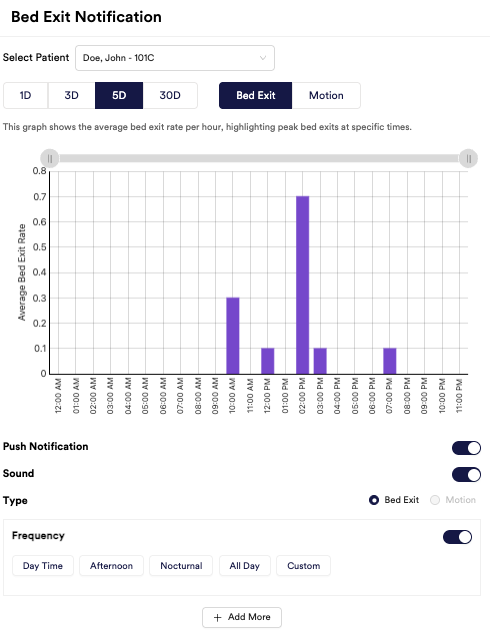
Review the Average Bed Exit graph
-
The graph shows how often the resident exits the bed by hour. Use this to identify peak activity times and select appropriate notification timeframes.
Configure notification settings
-
Select a predefined Frequency or choose Custom, then use the slider to set the notification timeframe.
Save your configuration
-
Save your settings to begin receiving bed exit notifications during the selected timeframe.
⚠️ Important: Bed Exit notifications are intended to support staff awareness and response. They do not prevent falls and should be used alongside clinical judgment and existing fall-prevention protocols.
How to turn off Bed Exit notifications
-
Go to the Motion & Exits tab
-
Scroll through the table or use the search bar to find the resident
-
In the Enable / Disable column, toggle the switch Off for that resident
Need help?
Our team is here to support you. Use the chat feature in the CIP app, or email support@circadia.health.